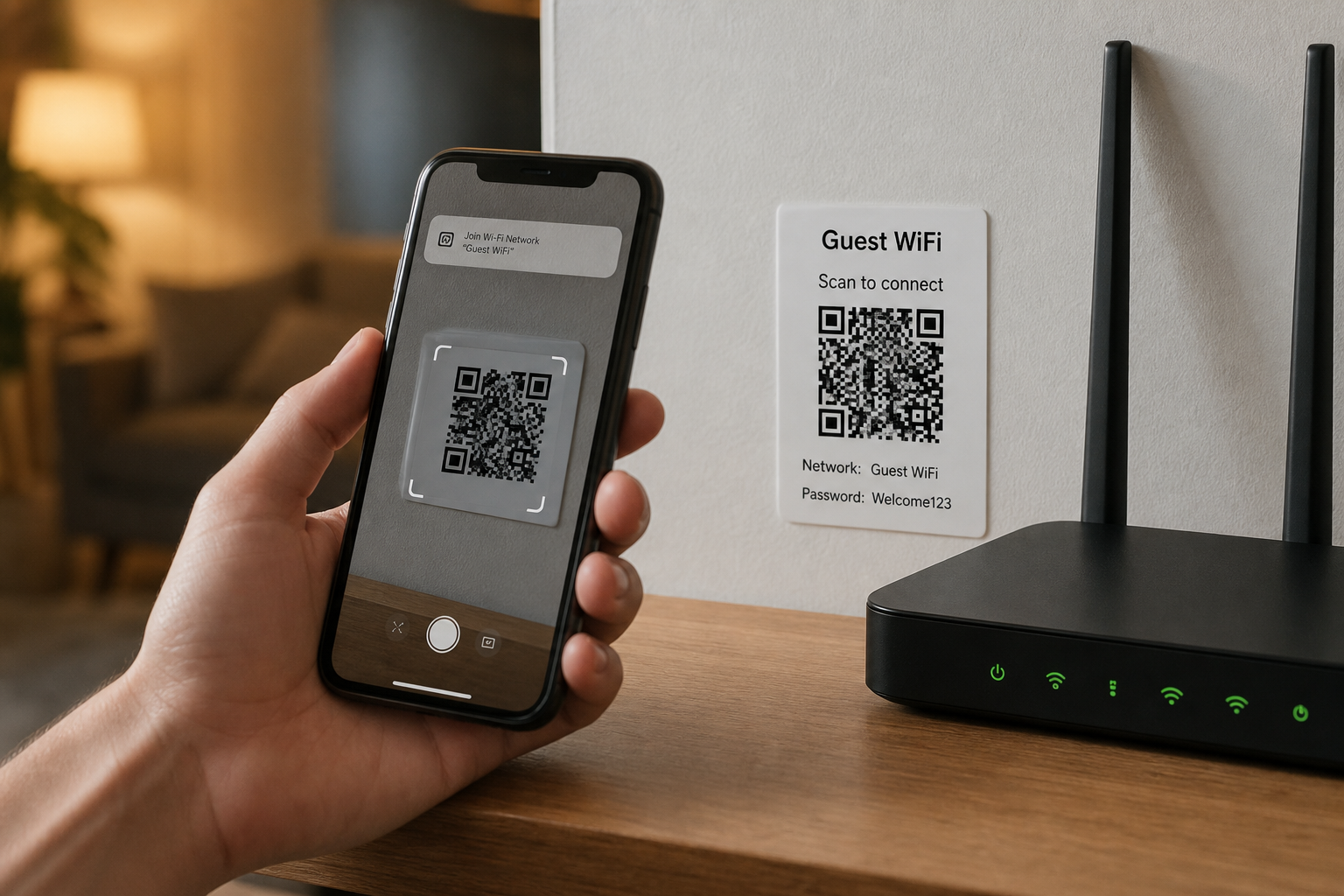
Create guest WiFi QR codes so visitors connect without typing passwords. WPA2 format tips and security best practices.
Why Guest Wi-Fi QR Codes Reduce Friction and Support Load
Typing long WPA passwords on phones is tedious and error-prone, especially for visitors juggling event badges and laptops. QR codes that encode Wi-Fi network credentials let guests scan once and join without reading characters aloud across a lobby. The widely used WIFI: QR payload format conveys SSID, security type, and password in a structured string phones understand. Generating that code with the QR Code Generator on ToolsFree.org takes seconds and avoids shipping credentials through chat apps casually.
From a security perspective, QR distribution still shares a secret with anyone who can view the code, so treat lobby posters as public within the building. Segment guest networks from corporate LAN resources, enable client isolation, and rotate passwords on a schedule. QR codes improve usability; they do not replace network architecture. Combine convenience with VLAN separation and content filtering appropriate to your risk profile.
Reception teams should know how to explain the scan process in one sentence and how to fall back to reading the password for accessibility needs without posting it on a public whiteboard permanently. Provide a small laminated card behind the desk with the current PSK and the date it rotates next. Align physical security: if badges open doors, guest Wi-Fi should not become a shortcut into printers holding confidential scans from finance. Train volunteers before large events rather than inventing the process while a line forms at the entrance.
The WIFI: Payload Structure Explained
A typical payload looks like WIFI:T:WPA;S:NetworkName;P:SecretPassword;; where T is the authentication type, S is the SSID, and P is the password. Special characters inside SSID or password may need escaping with a backslash according to common implementation conventions. Wrong escaping produces codes that appear valid visually but fail when scanned. Always test on both iOS and Android devices before printing signage at scale.
Hidden networks and unusual EAP enterprise configurations may not fit the simple WIFI: scheme. For corporate 802.1X, prefer onboarding portals or MDM instead of QR passwords. Guest use cases with WPA2/WPA3 personal pre-shared keys are the sweet spot. Keep a plaintext record of the exact payload string in your password vault so regenerating identical codes later is trivial when posters fade or tear.
From a compliance angle, retain logs according to policy and post an acceptable use notice near the poster when required by counsel. Captive portals can display that notice before full access, at the cost of an extra tap for each visitor. Decide with legal whether your venue needs that step for insurers or regulators. Document the decision beside the WIFI payload in your vault entry so future IT staff do not remove the portal without understanding why it existed for auditors.
WIFI:T:WPA;S:CafeGuest;P:correct-horse-battery;;Generating and Printing Durable Codes
Create the code with the QR Code Generator, download a high-resolution PNG, and print at a size that scans from one to two meters away in your space. Low-contrast printing on busy photographic backgrounds causes failures. Prefer dark modules on a light quiet field with adequate quiet-zone margins. Laminate lobby cards or use rigid stands so codes do not wrinkle under humidity.
Avoid screenshotting a tiny on-screen QR from a phone and enlarging it; start from a vector or high-res raster export. If you brand the poster, keep logos outside the quiet zone. Test under the actual lighting of the install location, including glare from windows. Replace damaged posters promptly; partial codes frustrate guests and create shadow IT workarounds like writing passwords on whiteboards.
- Use high contrast and sufficient physical size
- Preserve quiet-zone margins around the code
- Test iOS and Android before bulk printing
- Store the WIFI: payload in a vault for regeneration
Network Design for Safer Guest Access
Place guests on an isolated SSID with client isolation so devices cannot probe each other. Block access to internal admin interfaces at the firewall. Rate-limit bandwidth so a single visitor cannot saturate the uplink during uploads. Consider a captive portal for acceptable-use acknowledgment when legal or compliance teams require it, understanding that portals add friction versus pure QR join flows.
Rotate the guest PSK quarterly or after large public events. Generate a fresh strong password with the Password Generator, update the controller, regenerate the QR, and swap posters in one maintenance window. Do not reuse the corporate employee password on the guest SSID. Monitor for rogue access points advertising similar names near your premises during conferences.
Events, Pop-Ups, and Temporary Networks
Pop-up shops and conferences benefit from day-specific credentials encoded in badges or table tents. Print small runs so leftover posters do not circulate after the password changes. For multi-day festivals, rotate nightly if abuse appears in logs. Provide a non-QR fallback at the info desk for accessibility and for devices that struggle with scanning.
If vendors need printer access, grant a separate VLAN with only required resources rather than opening the entire guest network. Document the topology in a one-page runbook for volunteers. Include a link to your public status page if connectivity issues are common at the venue. Clear signage that the network is untrusted reminds users not to disable VPN protections they normally rely on.
Privacy and Operational Hygiene
Do not publish guest Wi-Fi QR codes on public websites or social media unless the network is intentionally open to the world. Geotagged photos of lobby posters can leak credentials online. Train staff to treat the code like a door code: visible on-site, not broadcast widely. When contractors leave, rotate secrets as you would for physical keys.
Browser-based generation on ToolsFree.org keeps your SSID and password local while creating the image, which is preferable to uploading credentials to unknown online generators. Afterward, clear printer previews on shared computers. Review related utilities on All Tools if you also need to encode URLs for venue maps beside the Wi-Fi poster.
Troubleshooting Failed Scans
When scans fail, verify the payload escaping, confirm the phone supports the security type, and check that the AP is online on the advertised band. Some devices struggle with extremely long passphrases or unusual Unicode SSIDs; simplify if needed. Ensure the QR version and error correction level suit your print size—higher correction helps damaged posters but increases module density.
Compare a known-good scan from staff devices with guest reports to isolate device-specific issues. Re-export the code rather than photocopying a photocopy. If only Android fails, confirm WPA type strings match common expectations such as WPA versus WEP. Keep a paper slip with the password behind the desk as last resort, then coach the guest to prefer scanning next time for accuracy.
Rollout Checklist for Offices and Cafés
Segment the network, generate a strong PSK, encode a WIFI: QR with the QR Code Generator, print durable signage, test both major mobile platforms, and schedule rotation. Add monitoring for unusual traffic from the guest SSID. Inform reception how to regenerate posters using the vaulted payload. Celebrate the reduction in “What’s the Wi-Fi?” interruptions with a measurable support metric.
Revisit the design after the first month: Are posters readable? Are guests attacking internal resources? Is bandwidth fair? Adjust isolation and capacity accordingly. Convenient onboarding should never outrun basic network hygiene. With a solid guest VLAN and a clear QR, visitors get online quickly while your private systems stay appropriately unreachable.
- Isolate guest traffic from corporate systems
- Generate and vault a strong WPA password
- Publish tested QR signage with quiet zones
- Rotate credentials after events or on a schedule
Create a scannable Wi-Fi QR code for your guests in seconds. QR Code Generator →